nDesigner just got a whole lot better!
Monday, September 7, 2026 - 14:28
For our U.S. customers: Most of our products are duty-free. If tariffs apply, we will cover the fees so you will not see additional charges at checkout.
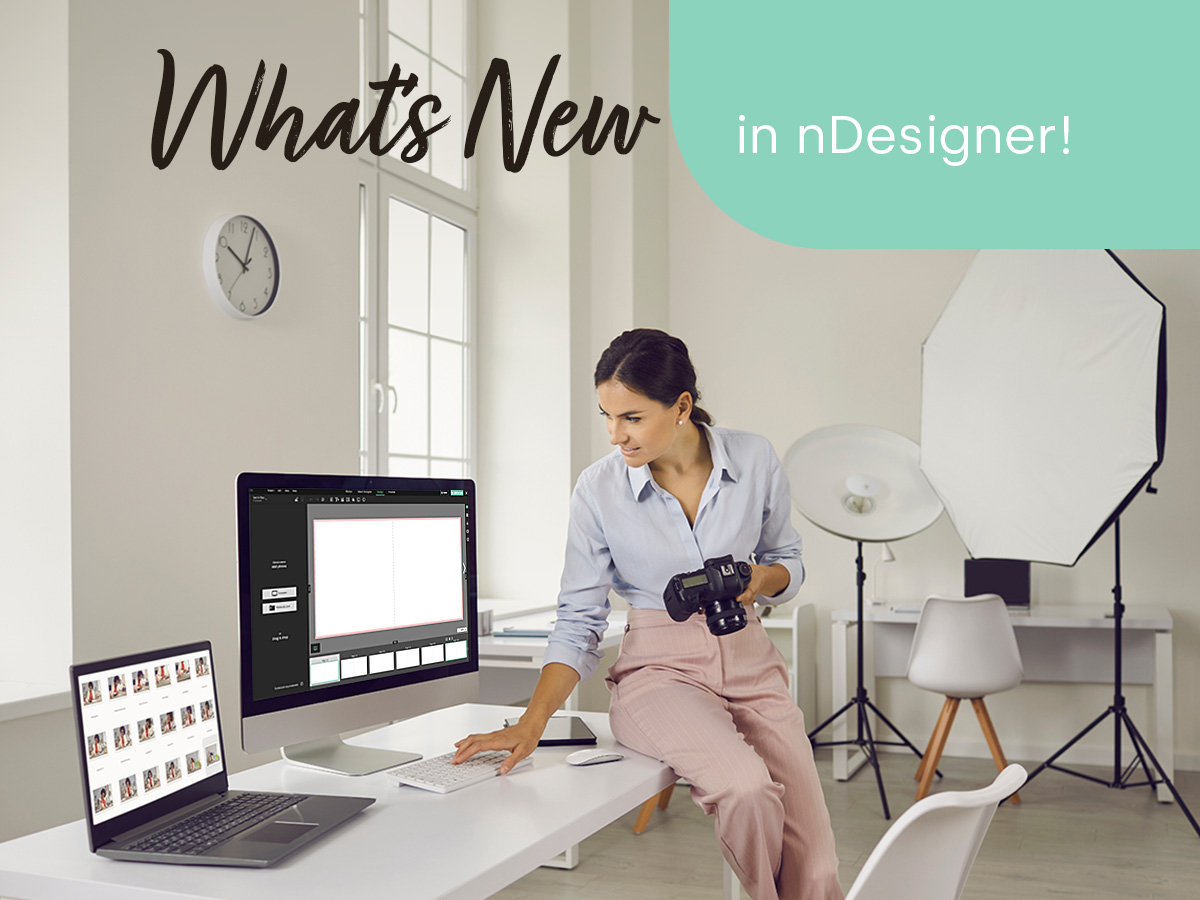
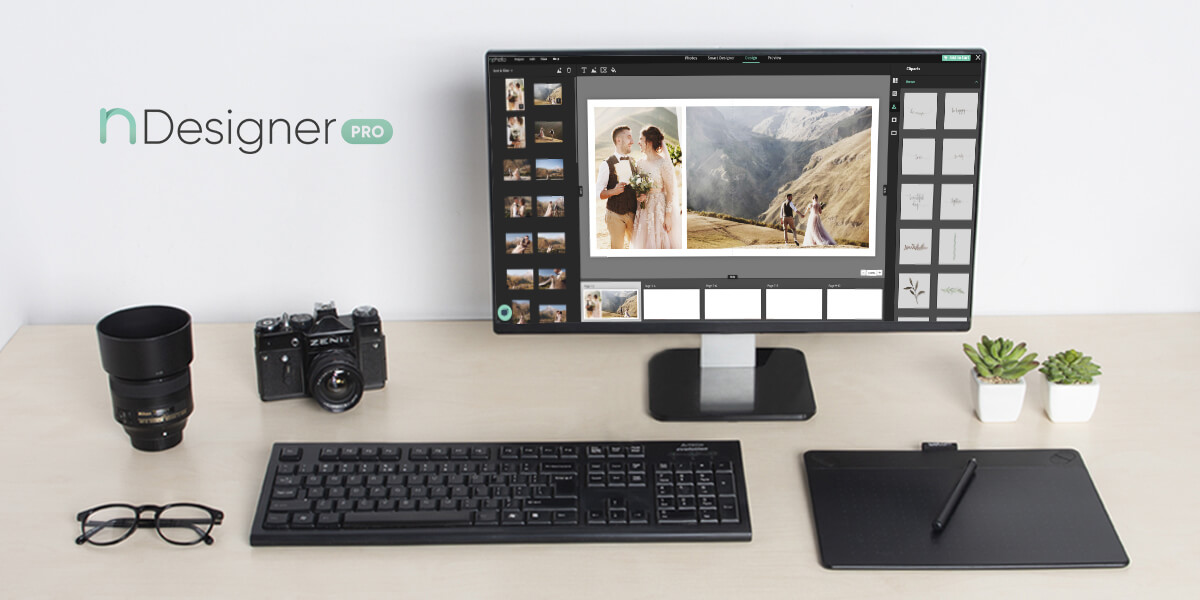
Our nDesigner editor is a tool we are constantly improving, although we probably do not talk about it often enough. There have been quite a few changes, all designed to make your work easier and faster and save time for every user, whether you are just getting started or already an experienced pro. Here is what has changed over the past quarter.
New additions at the top!
We have made a change to the right-hand panel of the editor. We have updated the asset sorting system. From now on, newly uploaded backgrounds, clipart, frames, masks and layouts will always appear at the top of the list. This means all new additions are right there at the top, easy to find and hard to miss. You can work more creatively without wasting time searching for new elements in this section.
I’ve seen this somewhere before...
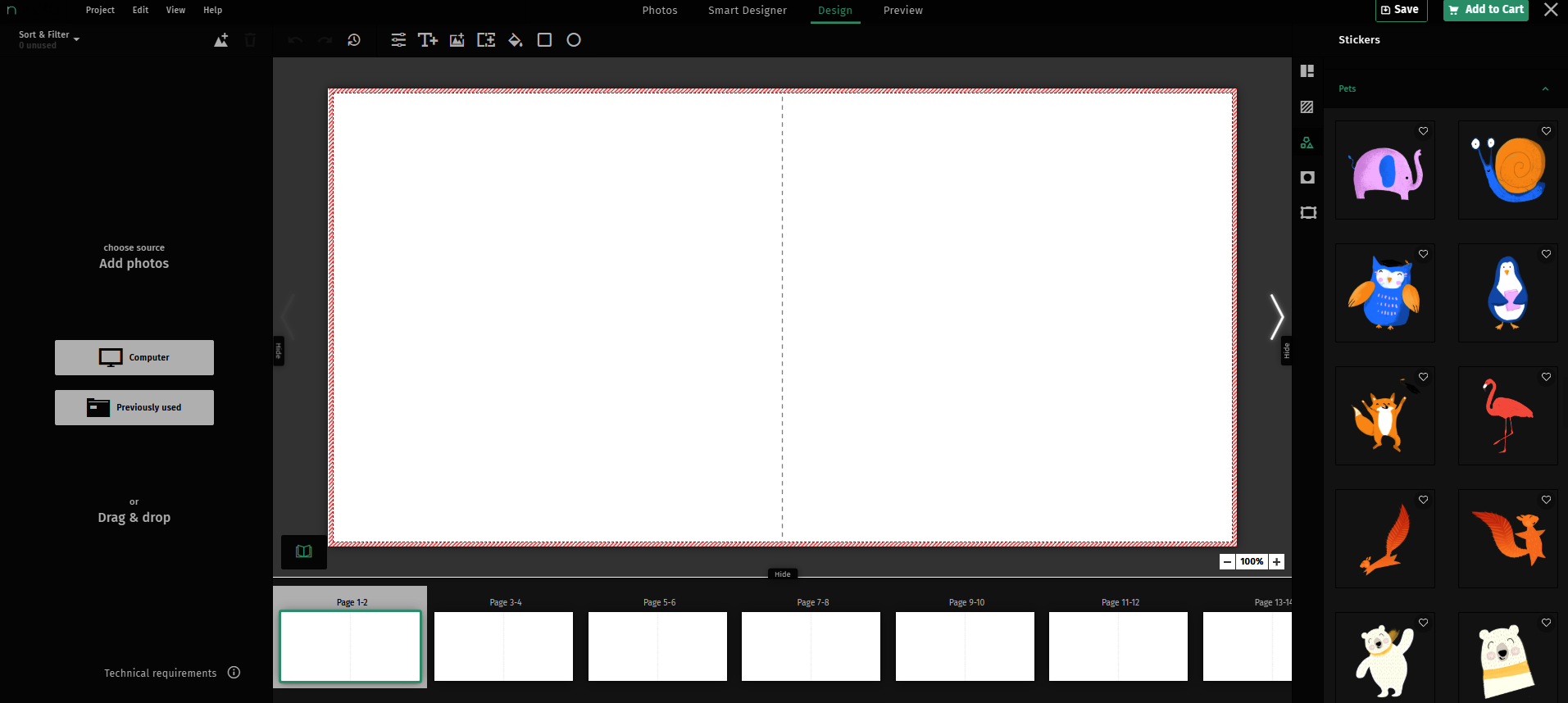
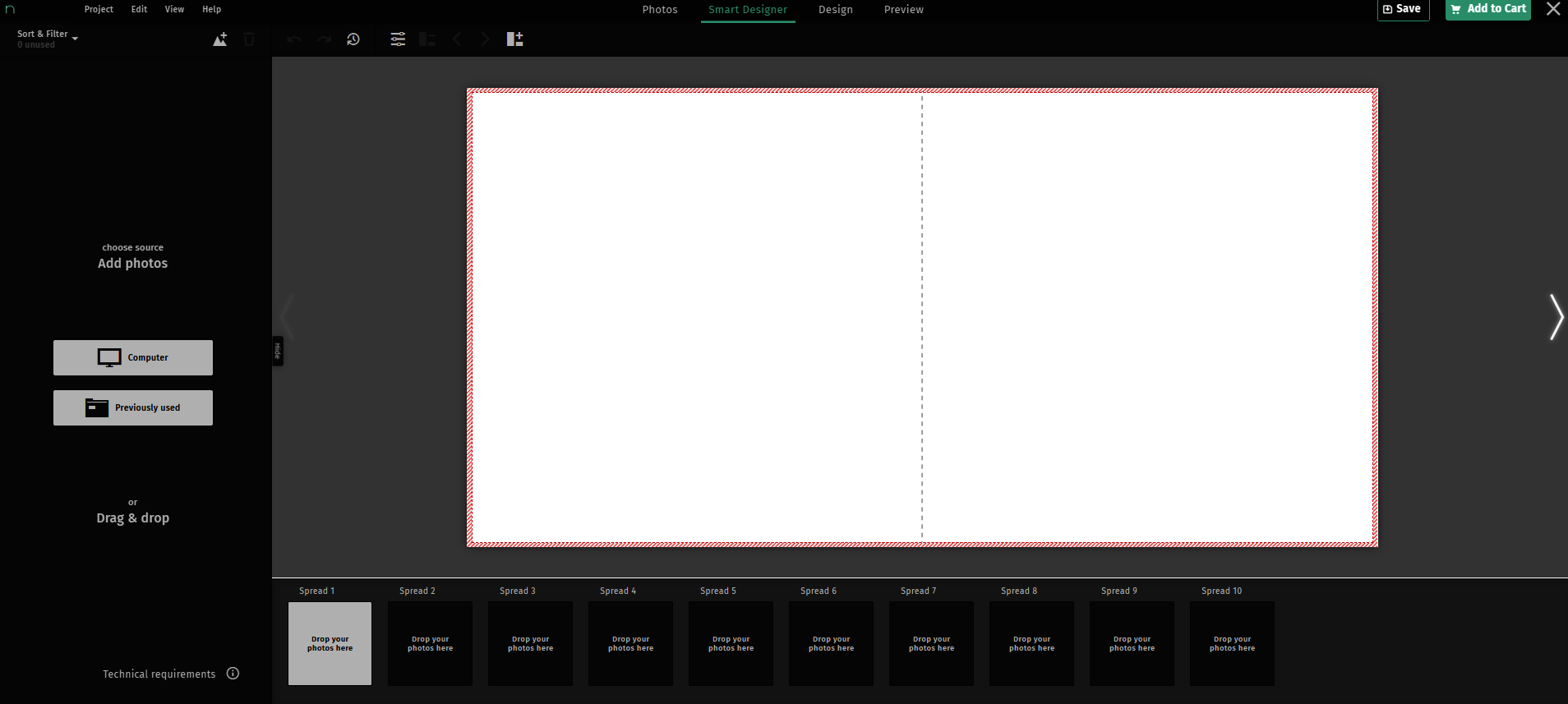
Same button, new name. In the panel for adding photos to the editor, the button name has been changed from "My Projects" to "Previously Used". The new name makes it immediately clear what you will find behind the button.
Mobile users, can you see me now?
For some time now, we have been receiving reports of problems opening the nDesigner editor on mobile devices and tablets. The issue was related to screen resolutions that nDesigner was not designed to support. Knowing how important it was to fix this, we switched the editor type from nDesigner to Advanced exclusively in RWD (Responsive Web Design) mode. This means that on mobile devices, the editor now launches in a different mode, but provides a stable experience. Importantly, as a customer, switching between these modes (designing on a computer in nDesigner and then on a phone in Advanced) does not cause any issues. The two editors are fully compatible in terms of configuration, and the problem with the mobile version has been resolved.
And while we’re on the subject of mobile...
Following the changes to nDesigner, clipart is now supported in the mobile view. You can freely add clipart to your project, move it around and resize it while maintaining its aspect ratio.
XL - better quality
We have changed the format used to store photos uploaded by customers, from WebP to JPEG XL. This format offers better quality at a similar file size. Project thumbnails remain unchanged.
Take a closer look
The Alt + Ctrl + Scroll shortcut on desktop now works differently, and better. Previously, the zoom mechanism focused on the central part of the project. It now zooms towards the cursor. The benefit? Even at high zoom levels, the project view stays within the workspace, so nothing disappears outside the frame.
Good changes to calendars too
We have introduced a faster way to add events to calendars by clicking directly on a cell for a specific day in the calendar grid. A completely new feature is the option to upload a photo to a selected day. The buttons at the top let you choose between a photo and an icon.
Important:
This feature does not work with vertical or horizontal calendar layouts. It works with the grid layout. If there is a component below the calendar grid (text field, photo field, clipart or shape), keep in mind that the component itself will be selected instead of the calendar cell. You will therefore need to move the component first, after which adding an event will work normally. Adding events using the button on the right remains unchanged and can still be used with any type of calendar.
History likes to repeat itself
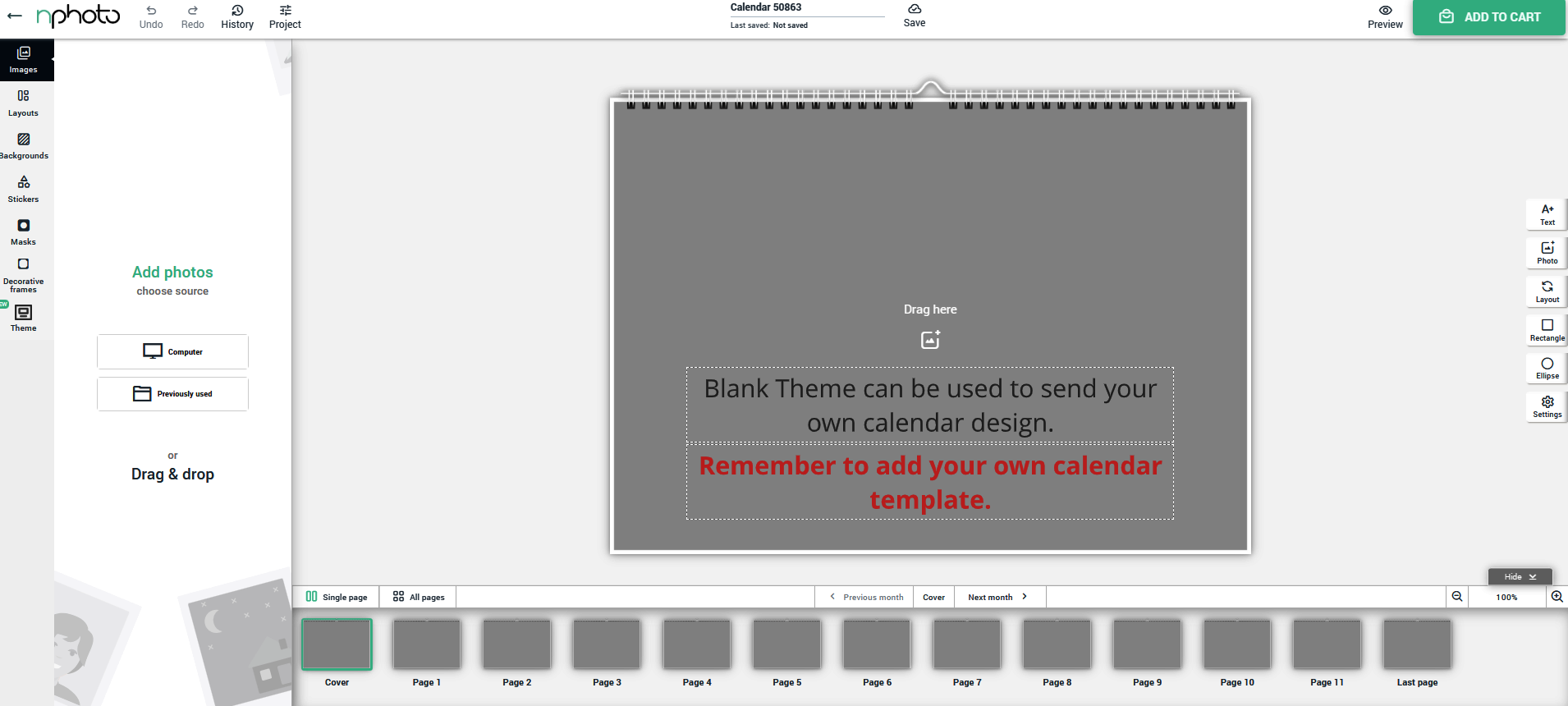
Adding the Project History feature to the nDesigner editor makes it possible to restore earlier versions of a project. The option has been placed next to the Undo/Redo buttons, so users can return to a selected version of their project at any time. We have also taken the opportunity to resolve an inconsistency with the messages currently displayed in the editor.
Let’s call things by their proper names
We have tidied up the naming of cover pages for inside covers in the editor. Instead of the confusing labels “Page 1-2” and “Page 2-3”, users will now see the clear names “Front inside cover” and “Back inside cover”, matching the part of the product they are actually designing. It’s clearer and more intuitive this way.
It’s clear that things are clearer now
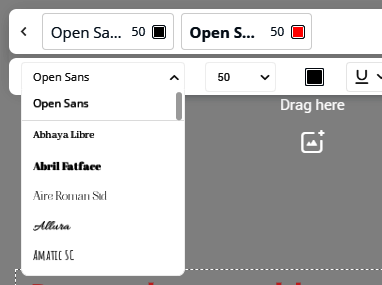
We have improved the text contrast in the font selection area of the PRO editor. The font list is now easier to read against the dark background, making it easier for users to browse and choose the right typeface.
A small detail that makes a difference
We have changed the colour of the UV print preview for all patterns on A50 and J54 materials. The change is intended to improve the visibility of patterns and text that were previously difficult to see.
More good things
For the J58 material, we have prepared Accordion Mini Book patterns in all available formats: 8x8" (20x20 cm), 12x12" (30x30 cm) and 10x14" (25x35 cm). We have also taken the opportunity to tidy up the way patterns and materials are configured.
The darker side of the mat
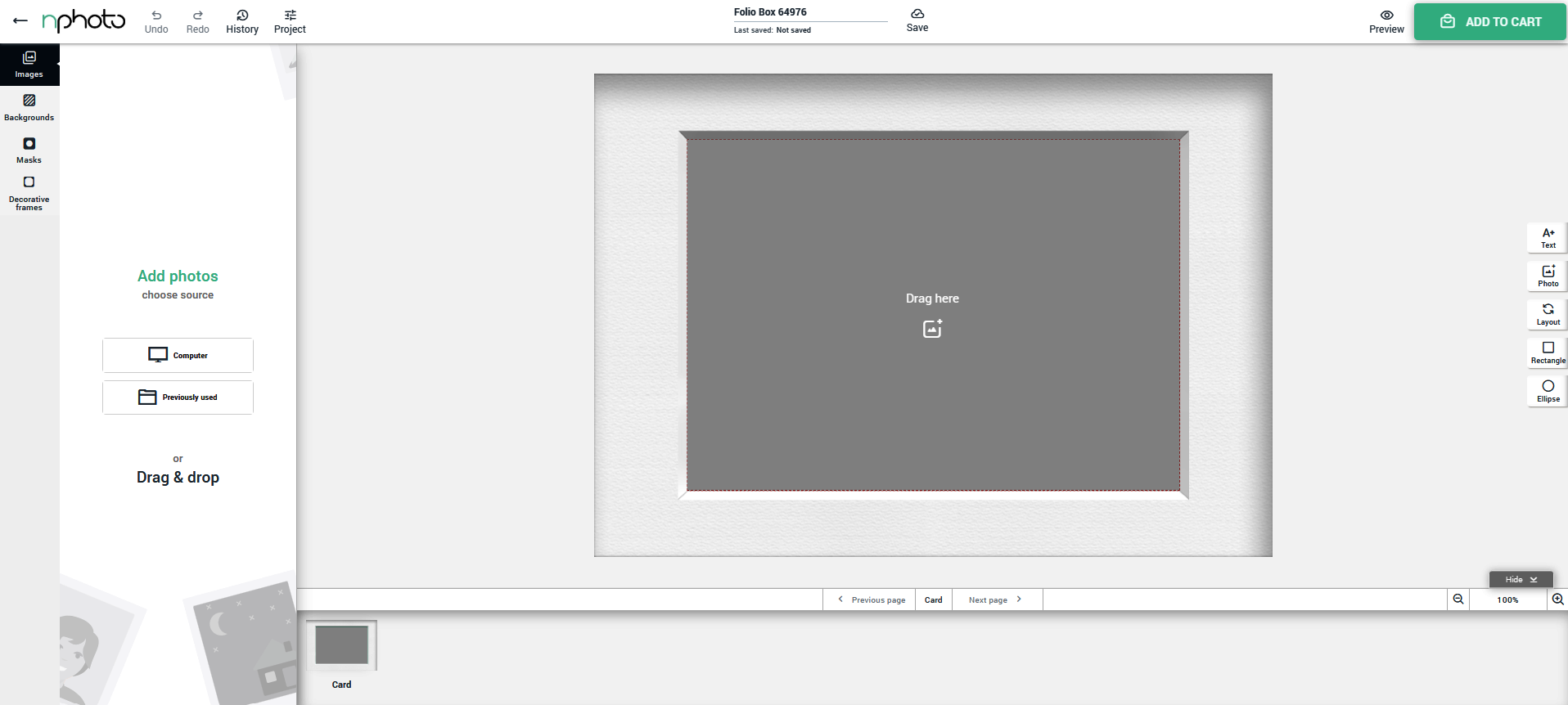
We have improved the mat preview in the framed image view. A subtle shadow has been added to all colour and format variants, clearly showing the inner edge of the mat and making it easier to assess the positioning of the photo.
These are not all the changes, but they are certainly some of the most interesting updates we have introduced to nDesigner over the past quarter. We are already working on more, making our design software even easier and more convenient to use, and helping photographers streamline their design work.
UK/IE/EU +44 (0) 20 3409 4355
US/CA/AU +1 (631) 772 - 0030
customerservice@nphoto.com
nPhoto is a proud manufacturer of the finest quality photo albums and photo products for professional photographers and professional photography studios. With over a decade of experience, we offer artistic, unique, heirloom products to our professional photographer clients using state-of-the-art technology.